

Microsoft Intune Multi Admin Approval (MAA) feature is one of the most effective tools for guarding against unauthorized changes, rogue administrators, or accidental misconfigurations in your environment.
However, a recent change in how Intune enforces MAA has significant implications for third-party patching tools, automation scripts, and other tenant management solutions.
What is Multi Admin Approval in Microsoft Intune?
Multi Admin Approval introduces a four-eyes principle to Intune. When an administrator attempts to perform a sensitive operation—such as creating, modifying, or deleting apps, deploying scripts, or triggering remote device wipes—Intune holds the change in a pending state until a second, designated administrator approves it.
You can find all supported resource types and how to create Multi Admin Approval policies from Microsoft Learn.
How It Works in Actions?
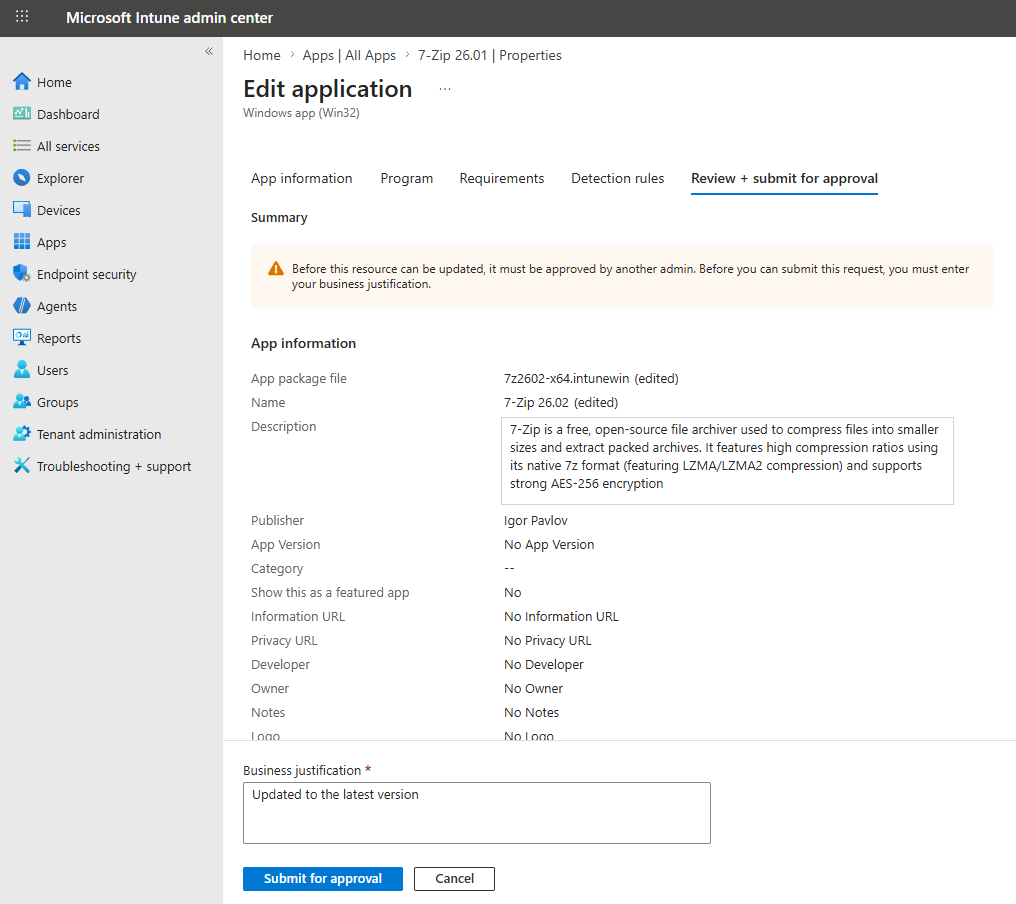
When an administrator creates, modifies, or deletes a resource that is protected by MAA policy, Intune does not apply the change immediately. On the final Review + Save blade or when running device actions, Intune prompts the requestor for a mandatory Business Justification. Here’s an example workflow of updating an Intune application when MAA policy for applications is in place:
- Administrator updates an application to the latest version and submits the request for approval
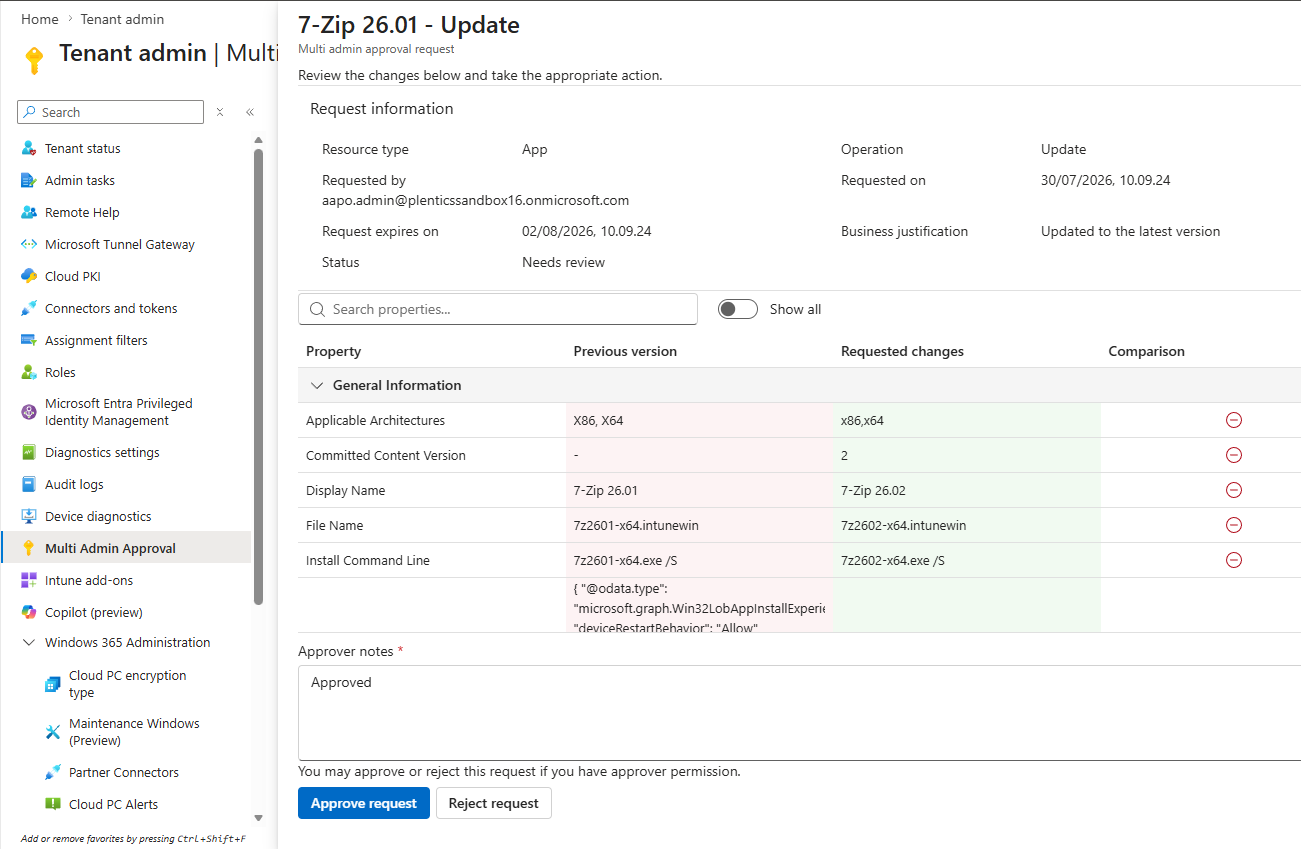
- Another admin reviews and approves the request from Multi admin approval The request contains a detailed list of the changes
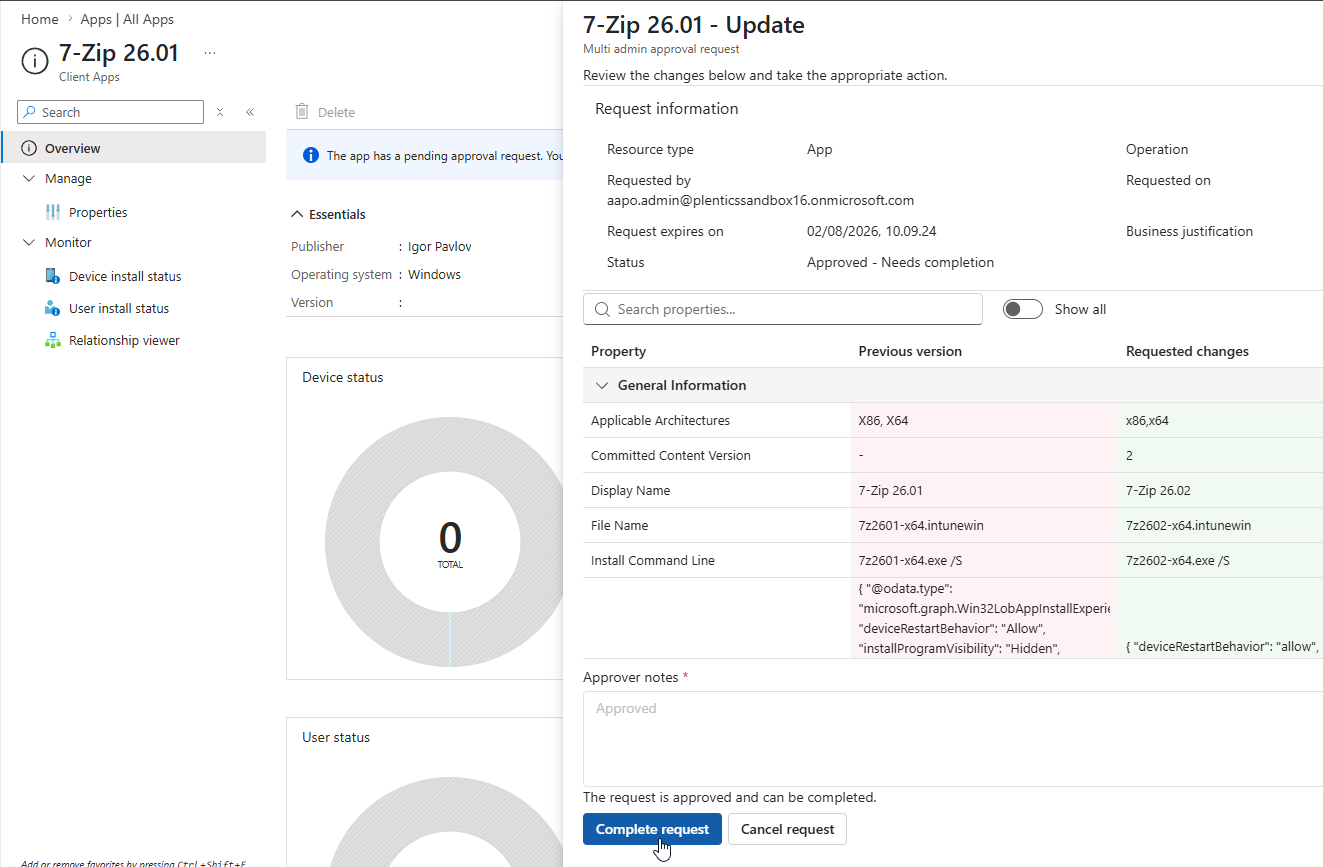
- The request status is updated to Approved – Need completion and the administrator who sent the request can complete the operation either from Multi admin approval page or directly from the application page.
- The application is now updated to the latest version, and the request status is changed Completed. Detailed information of the request is still available in Multi admin approval page.
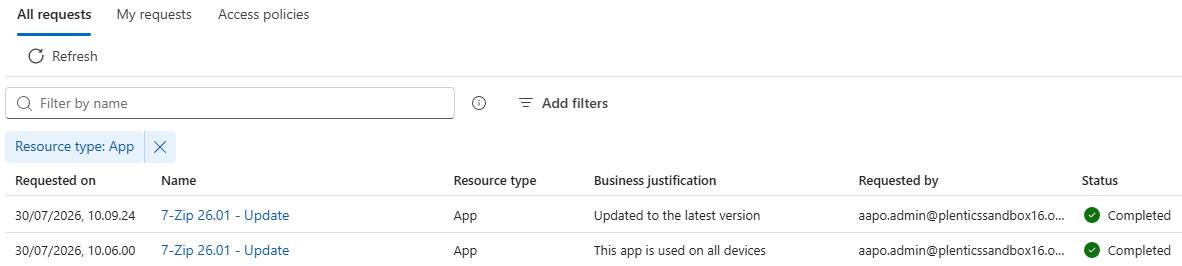
Note: Multi Admin Approval does not send email notification when a new request has been sent or when a request has been approved.
What Changed? The Graph API & Automation Expansion
Originally, MAA was enforced primarily on delegated authentication flows—meaning interactive sessions in the Microsoft Intune admin center or API requests made using a signed-in user’s credentials.
However, with recent service updates, Microsoft expanded MAA enforcement to cover application-authentication flows made via the Microsoft Graph API.
The Problem for 3rd-Party Patching and Tenant Management Solutions
Many enterprise environments rely on third-party automation solutions to package, upload, and update third-party software automatically. There are also tenant management solutions like Plentics, which are commonly used by managed service providers.
These tools operate in the background using service principals or app registrations (non-interactive, application permissions).
Under the updated enforcement MAA model:
- When an automated service attempts to upload a new Win32 app, update policies or run remote actions on endpoints, Intune checks if there any active MAA policies for the policy type.
- If an automated tool cannot interactively complete an MAA header flow, Graph API calls trigger an HTTP 403 Forbidden error.
- Automated app creation, policy update or any other actions protected by MAA policy fails silently or throws permission error.
How to Exclude External Tools from Multi Admin Approval
To prevent automated workflows from breaking while preserving protection for manual administrative actions, Microsoft introduced an Exclusions tab inside Multi Admin Approval access policies.
Adding an App Exclusion in Intune:
- Navigate to Multi Admin Approval page in Intune: Go to the Microsoft Intune Admin Center > Tenant administration > Multi Admin Approval > Access policies.
- Edit the Policy: Select the policy (e.g., MAA – Applications) and click Edit next to Exclusions.
- Add the Application:
- Select + Add under the Apps section.
- Search for your service principal or app registration (e.g. Plentics Suite).
- Select the application and confirm.
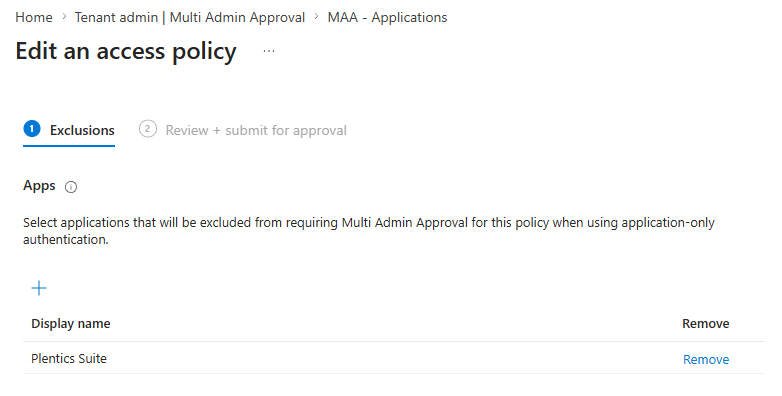
- Submit for approval:
- Review and submit the policy update. Note that updating an MAA policy itself requires approval from another administrator, and you need to complete the request after the request has been approved
Once excluded, automated tools can continue managing your tenant via Graph API without being blocked by interactive approval requirements.